You build a small announcements page with AI help. Pictures show up, the layout looks right, and then you open it on a phone and wait. The text is there. The images crawl in.
The usual cause is simple: the page serves a huge picture where a small one would do. I ran a small experiment to see how big the difference is and what goes wrong when you automate the fix.
How this was made: I used Claude to help draft this article. I ran the tests, checked the numbers, and edited the text. The mistakes are mine.
Are you shipping a huge crate for a tiny box?
If you upload a photo straight from a camera or a design tool and show it as a small card, the visitor’s phone still downloads the full-size file and shrinks it on screen.
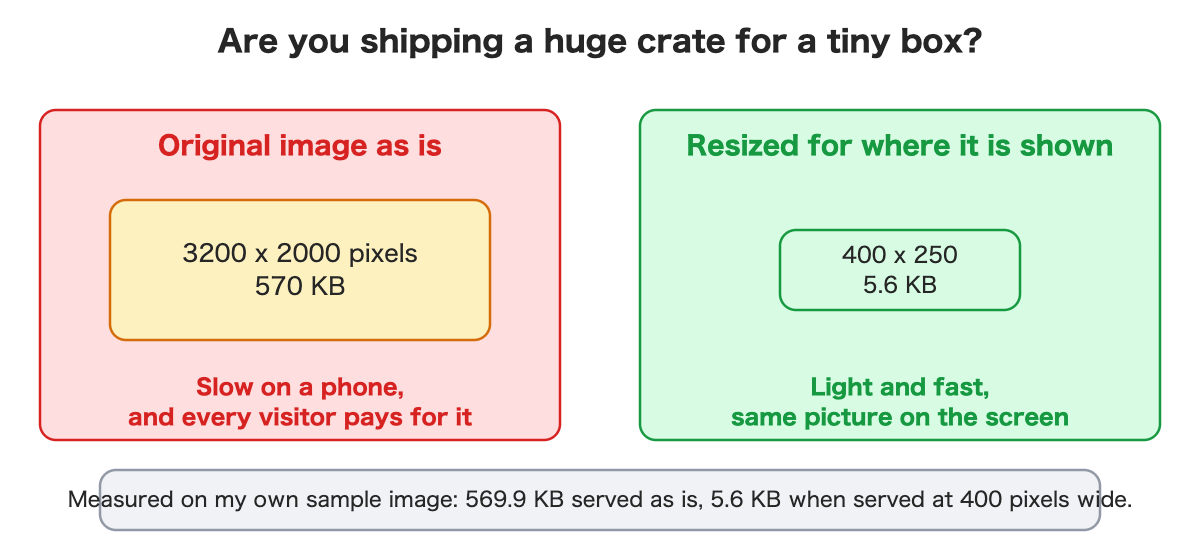
I took one generated picture, 3200 by 2000 pixels, 570 KB, and served it five ways:
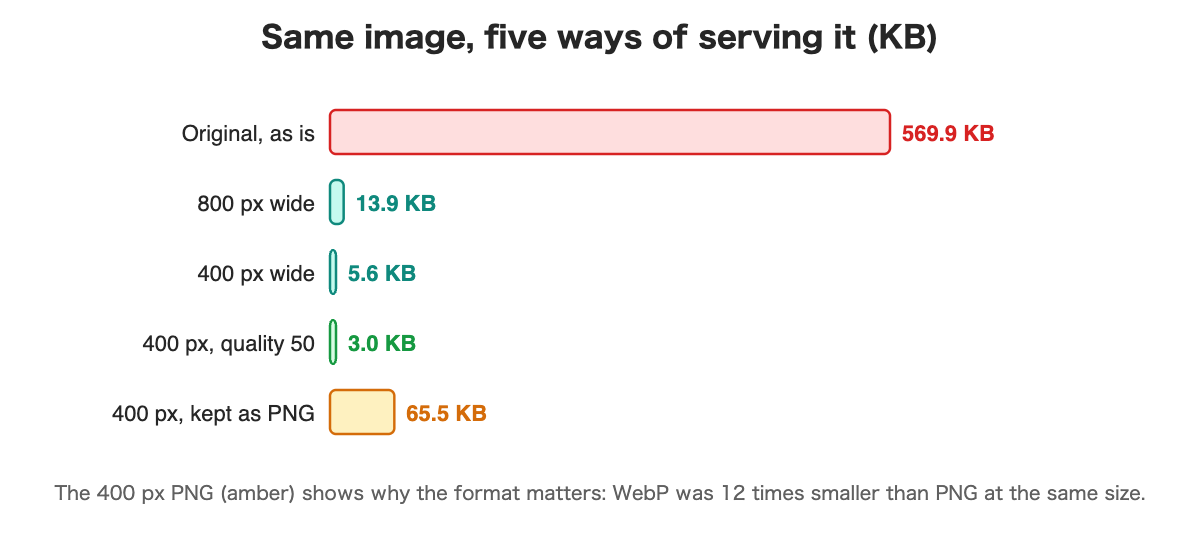
At 400 pixels wide, the same picture was 5.6 KB instead of 570 KB, about one percent. That is a measurement, with a big caveat: my picture is a generated illustration with large flat areas, which compresses far better than a real photograph. Expect a smaller win on photos, though still a large one.
One original, sizes on request
The idea behind automatic sizing is to store one original and let the sizes be chosen when the image is shown.
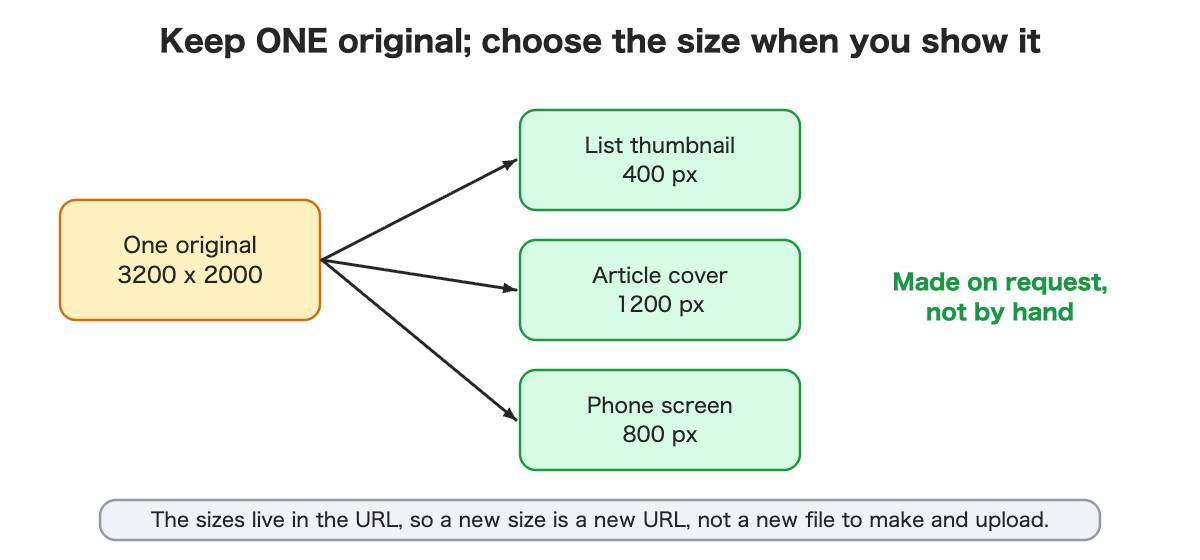
The size lives in the address of the image, for example “this picture, 400 pixels wide.” A list page asks for a small version, an article page asks for a larger one, and nobody has to export and upload several copies. If you add a new size later, it is a new address, not new files.
What surprised me
I tried this in a tiny announcements app: an admin page where an editor uploads a title, text and a cover image, and a public page that lists and displays them. Four things did not go as I expected.
1. Giving only a width cropped the picture. I asked for “400 pixels wide” and nothing else. The result was 400 by 2,000: a thin tall strip cut out of the middle. The default behavior is to fill the requested box and cut off what does not fit. Asking explicitly for “fit inside” gave a clean 400 by 250.
2. The file format depends on the browser. The same 400-pixel request came back as a modern compressed format (5.6 KB) when the request said it understands that format, and as a plain PNG (65.5 KB) when it did not. That is a 12 times difference from one missing hint. Browsers send the hint, so users are fine, but if you test with a plain tool you will see big numbers and wonder why.
3. A renamed text file got through. The admin page checked file types, but the check was based on the file’s name. I renamed a six-byte text file to “.png” and it was accepted, saved and published. The resizing service then failed on it with a server error, and my page showed a broken image with a message blaming “transformation unavailable.” The page did not even tell me the real problem: the file was not an image. I fixed my page to look at the file’s first bytes, which is a real improvement, but it is still a check in the browser. Anyone can send files without my page. A real system needs rules on the server too.
4. The settings said no, and it worked anyway. The provider’s documentation says this feature is for paid plans, and the settings screen showed the switch off on my free project. The resizing still worked. I do not know why, and it could stop working or become billable. I did not pay for anything. Read the current documentation and pricing before you rely on it.
Four things to check before you rely on it
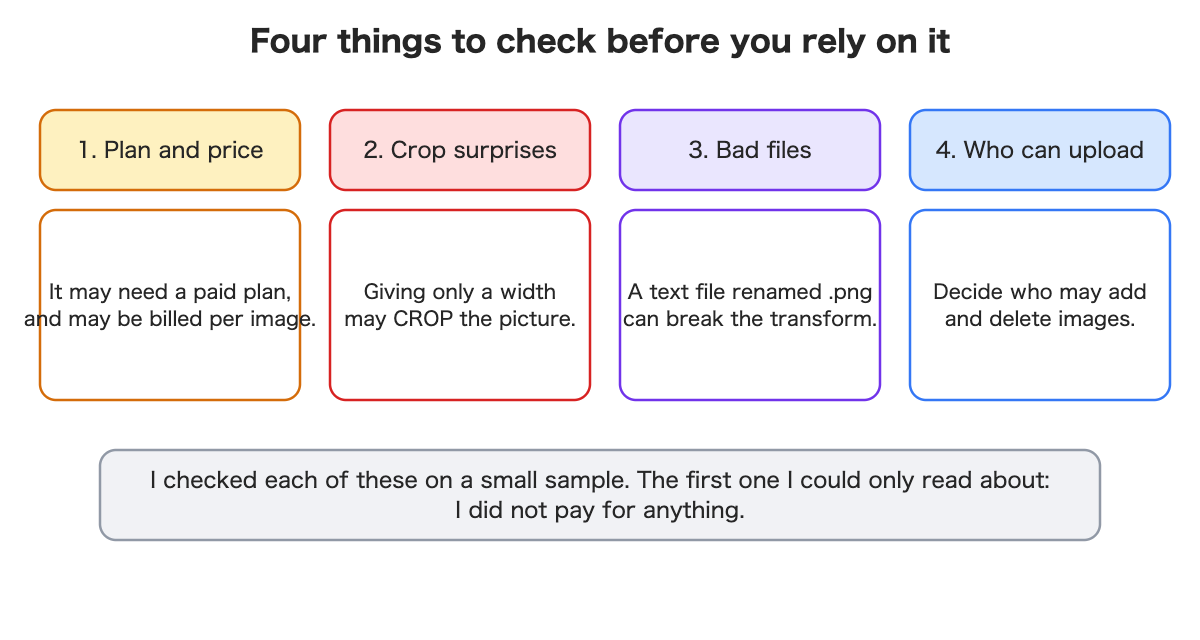
- Plan and price. It may need a paid plan and may be billed per distinct image processed. In the provider’s documentation at the time of writing, that was a small number included, then a per-thousand charge. I did not test a paid plan.
- Crop surprises. Decide whether you want “fill and crop” or “fit inside” for each place an image appears.
- Bad files. Check what is really inside an upload, on the server, not just the file name.
- Who may upload and delete. In my demo, every logged-in user was an editor. I only noticed because a login left over from a different demo could open the admin page and edit. Restrict it by role in anything real.
When to do the resizing
You can resize on request (what I tried), in advance when the file is uploaded, or when you publish. On request is the least work for editors and the most flexible. In advance can be cheaper if you serve many sizes of the same few images, and the provider’s own advice for keeping usage down is to pre-generate common sizes and cache. I did not compare the options on a real workload.
What it costs
My test cost nothing: I stayed on a free plan and did not enable or pay for anything. For reference, the documentation says the feature is for paid plans, with a few images included and a per-thousand charge beyond that, where “images” means distinct originals processed in a billing period, however many sizes you ask for. I did not look at a bill. The saving on the other side is smaller downloads for your visitors, and less data sent, which can matter on mobile.
Questions to ask your AI assistant
- “How will this page serve a small image for the list and a larger one for the article, without me making copies?”
- “What happens if I only give a width? Will the picture be cropped?”
- “What image formats will visitors actually receive, and does that depend on their browser?”
- “How do we check that an uploaded file is really an image, on the server?”
- “Does this need a paid plan, and how is it billed?”
What I did not verify
- Real photographs. My sample is a generated picture with flat colors.
- Private images with temporary access links.
- A paid plan, or why the feature worked on my free project.
- Phones and other browsers.
Summary
- Serving a big image where a small one fits costs every visitor. In my sample: 570 KB versus 5.6 KB.
- Store one original and ask for the size when you show it.
- A width alone can crop; the format depends on the browser; file-type checks on a page are not enough; and the plan rules may not match what you observe.
- Decide who may upload, and check uploads on the server.
If you want the hands-on version, with the commands, the numbers and the small CMS, I wrote it up for developers: Read the developer version on Dev.to (code on GitHub).
Leave a Reply